Screen Reader + Braille
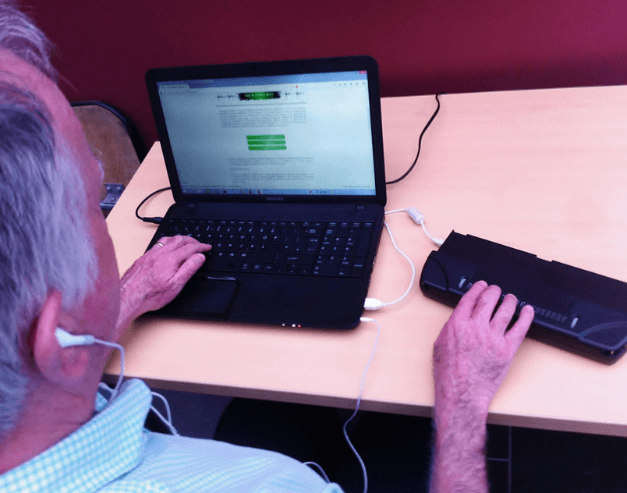
You can use a screen reader to show text from your computer screen in Braille. If you have a refreshable Braille device, you can connect it to your computer and read Braille in many languages, including English and Irish.
Summary
You can choose to have the text read out loud, displayed in Braille, or both at the same time.
You don't need to install any extra software. NVDA comes with free software called Liblouis to change text into Braille and back. NVDA and Liblouis can show Braille using the Irish Grade 1 (uncontracted) and Grade 2 (contracted) codes. You can learn more about the Irish Braille Codes on the INBAF website.
Instructions
Connect Your Device
- 1.
Make sure NVDA is running on your Windows computer.
- 2.
Connect your refreshable Braille device according to the supplier's instructions (usually by Bluetooth or USB cable).
Open NVDA Settings
- 3.
Once your device is connected, you will need to choose your Braille settings in NVDA.
- 4.
To open the NVDA Menu, press the NVDA Key and the N key.
- 5.
Press the down arrow key to go to Preferences, and then press the right arrow key to open the Preferences submenu.
- 6.
Press Enter on Settings (this is the first item in the Preferences submenu).
- 7.
Press the down arrow until you reach Braille Settings, then press Tab to move through the Braille settings options.
- 8.
Some Braille devices are found automatically by NVDA.
Choose Your Braille Codes
- 9.
If NVDA does not find your device, you can pick your device by pressing the "Change" button.
- 10.
If your Braille device has a Braille keyboard, you can pick the Input Braille code from the Input Table Combo box.
- 11.
Choose the Braille code that you want to see from the Output Table Combo box.
Start Reading
- 12.
Save your settings by clicking the OK button.
Need more help?
For further information see the NVDA User Manual. Open the NVDA menu by pressing the NVDA key and the letter n, and choose Help from the menu. You can also reach out to the ABAIR team for support.