Téigh díreach chuig an bpríomhábhar
Lógó ABAIR

Léitheoir Gréasáin

Web Reader speaks any web page in natural Irish voices and highlights each line as it goes, so you can listen and follow along. Built for anyone who'd rather hear a page than read it. Free, open, and made by a non-profit.

See how it works

Add Web Reader to your browser

A free browser extension for Chrome, Edge, Brave, Opera, and Firefox. Once it's installed, Web Reader is ready on every page you visit: a small floating toolbar you can drag anywhere, press play, and listen. No account, no sign-up, nothing tracked.

How to use it

Once the extension is installed, a floating toolbar sits on every page. Here's everything it does, the same steps you'll find in the in-app manual.

1

Read a full page

Press Play on the toolbar and Web Reader reads the whole page from the top, highlighting each line, and each word, as it speaks.

Tá an Ghaeilge ar cheann de na teangacha is sine san Eoraip.Labhraítear go laethúil í sa Ghaeltacht gach lá.Tá pobal úr cainteoirí ag fás ar líne.

2

Read only what you select

Drag to highlight any passage. A Léigh button appears just above it. Click to hear only that part.

Tá an tionscadal ABAIR lonnaithe i gColáiste na Tríonóide. Forbraíonn an fhoireann guthanna sintéiseacha don Ghaeilge. Tá siad ar fáil saor in aisce.

Toolbar controls

The whole toolbar is just a handful of buttons. Here's exactly what each one does.

Drag handleGrab the dotted handle to move the toolbar anywhere on screen.
Play / PauseStart reading the page aloud. Press again to pause, and once more to pick up where you left off.
StopStop reading completely and clear the highlight from the page.
Skip backJump to the start of the previous paragraph to hear it again.
Skip forwardMove ahead to the next paragraph and keep reading from there.
VolumeOpen a volume slider, like on a video player, to make the voice louder or quieter.
SettingsOpen the settings menu, where speed, dialect, voice and the reading toggles live.
HelpOpen the built-in manual with step-by-step instructions.
MinimizeCollapse the toolbar to a small Web Reader button so it stays out of your way. Click that button to bring it back.
SpeedIn the settings menu, drag the slider to slow the voice right down or speed it up, from 50% to 150%.
Dialect & voiceAlso in the settings menu: switch between dialects and choose the speaker you like best.
Frequently asked questions

I don't see the control panel

Make sure the extension is turned on. Click the Web Reader icon in your browser toolbar. The round power button at the top of the menu glows green when the extension is on.

I don't hear any sound

Check that your computer's volume is turned up, and that you're connected to the internet. The reader needs a connection to work.

The voice sounds wrong

Try changing the dialect or voice in the toolbar. Different dialects sound quite different.

The toolbar is blocking the page

Drag the dotted handle on the left to move it, or click minimize to shrink it. Click the speaker icon to expand it again.

How do I turn the extension off?

Click the Web Reader icon in your browser toolbar, then click the round power button at the top of the menu. It stops glowing green, and the toolbar disappears until you switch it back on.

Teanglann lookup

While Web Reader is running, double-click any Irish word to open its entry in a popover anchored to the word. Entries come from Teanglann.ie, the authoritative Irish-language dictionary. You get the meaning and grammar without opening a new tab or losing your place.

Dictionary content is from Teanglann.ie, developed and operated by Foras na Gaeilge. Web Reader opens their entries directly and stores no dictionary content of its own.

Chuir an ceoltóir draíocht ar an slua le gach nóta a sheinn sé.
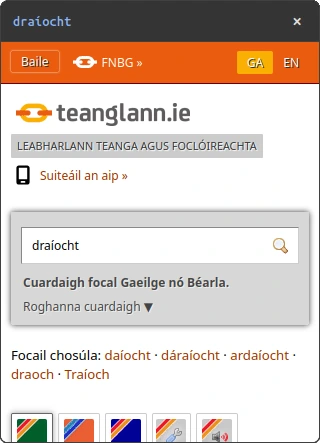
Teanglann.ie dictionary entry for draíocht

Adding Web Reader to a website

Web Reader can be embedded in any website with a single script tag. The script is served from our CDN at webreader.abair.ie, giving every visitor the same floating controls and Irish read-along. The script can also be downloaded from the CDN and pasted directly into your application. It is provided free of charge.

index.html
<script src="https://webreader.abair.ie/script.js" async></script>

Every release keeps its own permanent address, so a version you pin stays available. Use /script.js for the newest build, /v1/script.js to follow 1.x releases, or /v1.3.0/script.js to stay on one exact version.

What the reader reads

The reader picks one container on the page and reads only what is inside it. Getting this right is what makes a page sound correct.

index.html
<body>
  <header>…</header>

  <main>
    <h1>Alt an Bhile</h1>
    <p>Is baile fearainn é seo i gContae Dhún na nGall.</p>
  </main>

  <footer>…</footer>
</body>
Put your content in <main>
Without a <main> or <article> element the reader falls back to the whole <body>, so visitors hear the navigation menu, the cookie banner and the footer before reaching the article.
Tags that are read
Only p, h1–h6, li, td, th, blockquote, button, a and figcaption are read. Text in a <div> or <span> is skipped. Wrap it in a <p> instead.
Order follows your HTML
Reading order is source order. Re-ordering visually with CSS does not change what is read first.
Avoid reading things twice
A <button> inside a <p>, or a nested <li>, is read twice. Move the button out and keep list items as siblings.
Configuration

Optional. Define window.WebReaderConfig before the script tag to override the defaults.

config
<script>
  window.WebReaderConfig = {
    locale: 'ga',
    panelPosition: 'bottom-right',
    collapseByDefault: true,
    speed: 1.0,
    dialect: 'ga_CO',
    voice: 'ga_CO_snc_piper',
    wordLookup: false,
    announceMedia: false,
    disableTeanglann: true
  };
</script>

The reading defaults below (speed, dialect, voice, wordLookup, announceMedia) seed a visitor's settings on their first visit only. After they change a setting in the panel, their own choice is kept. disableTeanglann is a hard lock applied on every load.

contentSelector
A CSS selector for the element to read, e.g. '#article'. Use this when you cannot add a <main> element, or the reader picks the wrong part of the page.
ignoreSelector
A CSS selector for elements never to read, e.g. '.ad, .related'. Use it to keep ads, share bars and related-link blocks out of the reading.
locale
Interface language. 'ga' (Irish) or 'en' (English). Defaults to 'ga'.
panelPosition
Which corner the panel starts in: 'bottom-right' (default), 'bottom-left', 'top-right', 'top-left', or 'remember' to keep where the visitor last dragged it. Pixel coordinates are not supported.
collapseByDefault
true (default) starts collapsed; false starts expanded. A visitor's own toggle is remembered in localStorage.
speed
Default playback speed, from 0.5 (slowest) to 1.5 (fastest); 1.0 is normal. First-visit default.
dialect
Default dialect: 'ga_CO' (Connemara), 'ga_UL' (Donegal), 'ga_MU' (Kerry), or 'ga_MU_ar' (Waterford). Picks that dialect's default voice unless voice is also set.
voice
Default voice id, e.g. 'ga_CO_snc_piper' (Sibéal) or 'ga_UL_anb_piper' (Áine). Sets the matching dialect automatically.
wordLookup
Whether double-click Teanglann lookup starts on. true or false (default). Needs disableTeanglann: false. First-visit default; visitors can still toggle it.
announceMedia
Whether spoken "Link:" and "Image:" announcements start on. true or false (default).
disableTeanglann
Hard lock, on by default. true (default) removes Teanglann lookup entirely: no double-click, no Alt+L, and the toggle is hidden from the panel. Set false to allow it. Applied on every load, overriding wordLookup.
React / Next.js integration

The script must run in the browser. In React or Next.js, inject it from a client-side useEffect.

1. Add WebReader.tsx

WebReader.tsx
"use client";

import { useEffect } from "react";

export default function WebReader() {
  useEffect(() => {
    if (document.getElementById("webreader-embed-script")) return;

    window.WebReaderConfig = {
      locale: "ga",
      panelPosition: "bottom-right",
    };

    const script = document.createElement("script");
    script.id = "webreader-embed-script";
    script.src = "https://webreader.abair.ie/script.js";
    script.async = true;
    document.body.appendChild(script);

    return () => {
      window.WebReader?.destroy();
      document.getElementById("webreader-embed-script")?.remove();
    };
  }, []);

  return null;
}

2. Mount it in the root layout

app/layout.tsx
import WebReader from "./WebReader";

export default function RootLayout({ children }) {
  return (
    <html>
      <body>
        {children}
        <WebReader />
      </body>
    </html>
  );
}
Controlling the reader with JavaScript

The script adds one object to the page, window.WebReader. Use it to start and stop reading from your own buttons, to switch the reader off on some pages, to change settings while the page is open, or to run your own code when reading starts, stops or ends. Every method returns WebReader, so you can chain calls.

1. Wait for the script to load

The script tag uses async, so your own code can run before window.WebReader exists. This helper runs your code at once if the reader is there, and otherwise waits for the page's load event, which the browser holds back until the script has run. It works whether your code comes before or after the script tag. If you add the script tag from your own code, as in the React example, use that tag's load event instead. You can call any method as soon as your code runs: play() and setEnabled() wait until the reader has finished starting up.

script.js
function withWebReader(fn) {
  if (window.WebReader) return fn(window.WebReader);
  window.addEventListener("load", () => {
    if (window.WebReader) fn(window.WebReader);
  });
}

2. Start reading from your own button

index.html
<button id="listen">Éist leis an leathanach seo</button>

<script>
  withWebReader((reader) => {
    document.getElementById("listen").addEventListener("click", () => reader.play());
  });
</script>

3. Switch the reader off on some pages

script.js
withWebReader((reader) => {
  const isIrish = document.documentElement.lang.startsWith("ga");
  reader.setEnabled(isIrish);
});

4. Run your own code when something happens

script.js
withWebReader((reader) => {
  reader.on("complete", () => {
    console.log("Finished reading the page");
  });
  reader.on("error", (detail) => {
    console.warn("Web Reader:", detail.message);
  });
});

Methods

play()
Starts reading, or continues after a pause. Reads the text the visitor has selected if there is any, otherwise the page. This is the same as the play button on the panel. It does nothing if the reader is already reading.
pause()
Pauses reading. The next play() continues from the same place.
stop()
Stops reading and removes the highlight. The next play() starts again from the beginning.
setEnabled(true | false)
setEnabled(false) stops reading and hides the panel. setEnabled(true) shows it again. The script stays loaded, so switching back is instant. This lasts for the current page only: after the next page load the reader is on again, so call it on each page where you want the reader off.
configure(options)
Changes settings while the page is open. It takes the same options as window.WebReaderConfig, for example configure({ speed: 1.2, locale: 'en' }). The visitor's browser remembers the new settings, the same as if the visitor had changed them in the panel. These options only work while the script loads, so set them in window.WebReaderConfig instead: contentSelector, ignoreSelector, collapseByDefault, panelPosition, panelOffset and panelZIndex.
on(event, handler)
Runs handler each time the event happens. The handler receives a detail object. The events are listed below.
off(event, handler)
Removes a handler that you added with on(). Leave out handler to remove all handlers for that event.
destroy()
Removes the reader from the page completely: it stops reading, removes the panel and removes all of its listeners. After this, all other methods do nothing. If you only want to hide the reader for a while, use setEnabled(false).
version
The version of the script that loaded, for example "1.2.3". This is a property, not a method.

Events

"play"
The visitor pressed the play button on the panel, or your code called play(). The panel button switches between play and pause, so this event also happens when the visitor pauses from the panel.
"stop"
The visitor pressed the stop button, or your code called stop().
"complete"
The reader has read to the end of the page.
"error"
The panel showed an error to the visitor, for example because the speech service could not be reached. detail.message holds the text of the error.

If the visitor has the Web Reader browser extension, the script steps aside for the extension. On that page, window.WebReader methods do nothing.

Adding it to a website: FAQ

The panel doesn't appear after installation

Confirm the tag is inside <body> rather than <head>, the file is saved, and do a hard refresh (Ctrl/Cmd + Shift + R).

The panel starts collapsed

That's the default. Expanding the panel persists the choice to localStorage for the visitor's next visit.

Are non-Irish voices available?

Not yet. Every synthesised voice is Irish today, and the interface alone can be switched to English with locale: 'en'. Bilingual voices are in active development. Code-switching comes first, so an Irish voice handles English words and phrases inside Irish text, with Hiberno-English versions of our voices to follow.

Is there a usage fee?

No. The service is provided free of charge by the ABAIR research project. You do not have to add anything: the collapsed panel button already carries the ABAIR mark, and that is attribution enough. If you would also like to credit us in your own words, a line in your footer or accessibility statement such as "Irish text-to-speech by ABAIR, Trinity College Dublin", linked to abair.ie, is very welcome.

Where do I report issues?

Contact the ABAIR team through the form at abair.ie.

Accessibility and privacy

Web Reader is designed to meet WCAG 2.1 AA: keyboard accessible, ARIA-labelled, with colour-blind-friendly highlight presets and an Irish interface alongside English. No account, cookie, or tracking of any kind. Text you have read aloud, and speech you dictate, is sent to ABAIR only to generate audio or a transcript. The optional dictionary lookup sends the chosen word to Teanglann.ie.


Designed to meet WCAG 2.1 AAScreen-reader compatibleKeyboard navigableIrish & English interfaceNo tracking
DCHG
S20
Crannchur Náisiúnta
COGG
Trinity College Dublin